
Need a hand?
Something swimming backwards? Creature refusing to appear? Minecraft acting like Minecraft?
Start here.
Making a creature
Learn how to build, draw and decorate your creature.
Moving a block about
The three round buttons, sticking blocks together, and “moves alone”.
Colours, glow and ghosts
Colour a whole block in one tap, make it glow, and hatch it in many colours.
Many of the same thing
Suckers, scales, spikes and spines — make a whole row from one, and change them all at once.
Making it move
Create poses, record a motion by hand, and choose how it flows.
Giving it behaviour
Choose what your creature does without writing Minecraft code.
Testing your creature
Use the practice pond to catch problems before export.
Putting it in Minecraft
Export your creature, switch the pack on, and fix the file refusing to open.
Finding a lost creature
Creature Rescue can rebuild a Mobloom project from a Mobloom Minecraft export.
Accounts & cloud saving
Find your creatures, switch makers and understand cloud save status.
For grown-ups
Accounts, family plans, billing and privacy.
Making a creature
Open Mobloom and you’re already making: the green starter block is your creature’s body. Add more from Add a part — Box, Arm, Fin, Wing — or go to Draw to draw a shape and turn it into a creature.
The New button at the top starts a brand new creature, it does not add a block. Your current one is kept safe in My creatures.
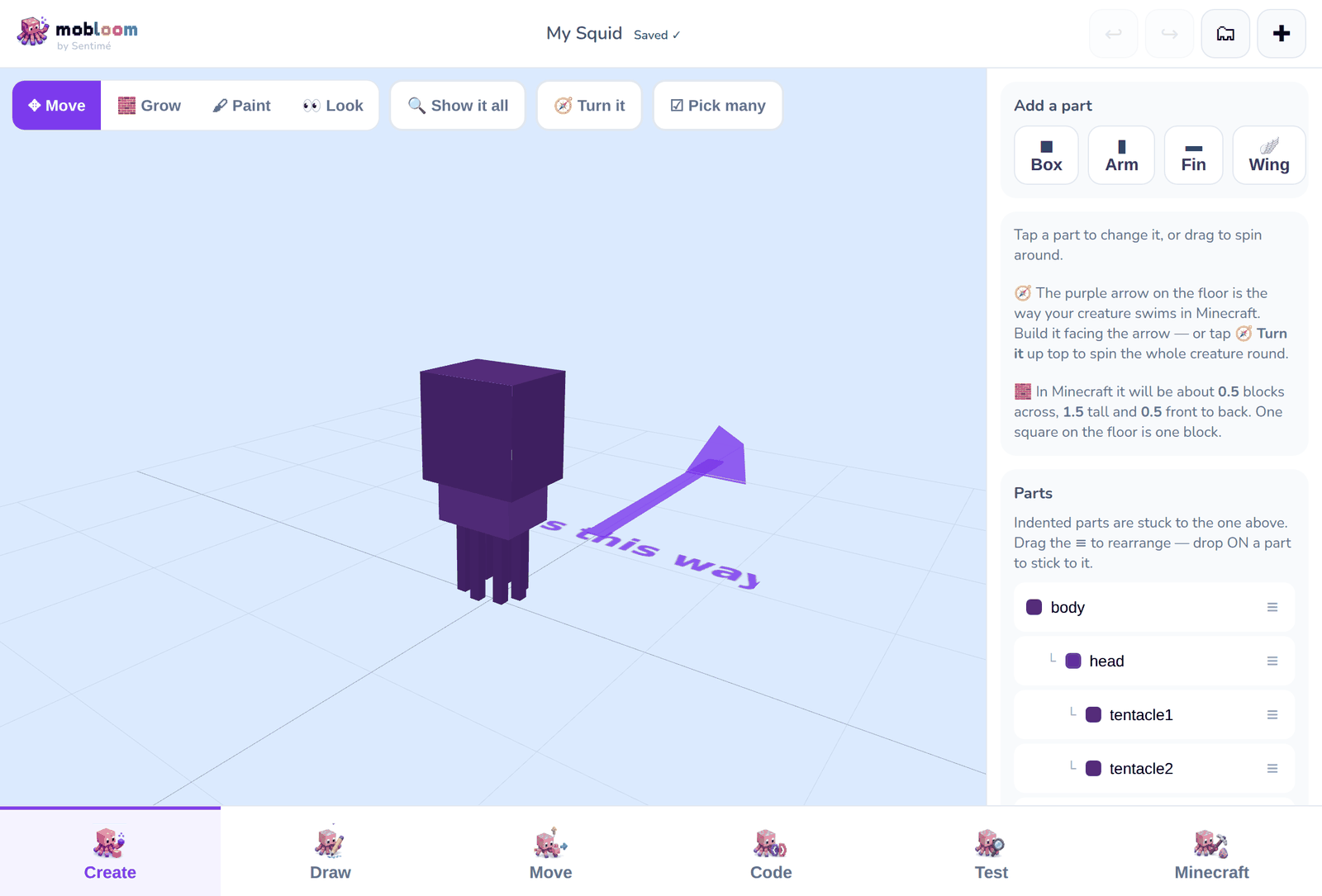
Tap a block and small dots appear around it. Drag a dot to make the block longer, taller or deeper — the opposite side stays exactly where it is, so nothing shifts underneath you.
Zoom in and more dots appear. A small block on screen offers just its sides; a bigger one adds corners, and a big one adds edges too, so moving closer gives you finer control — the same as leaning in to work on something in real life.
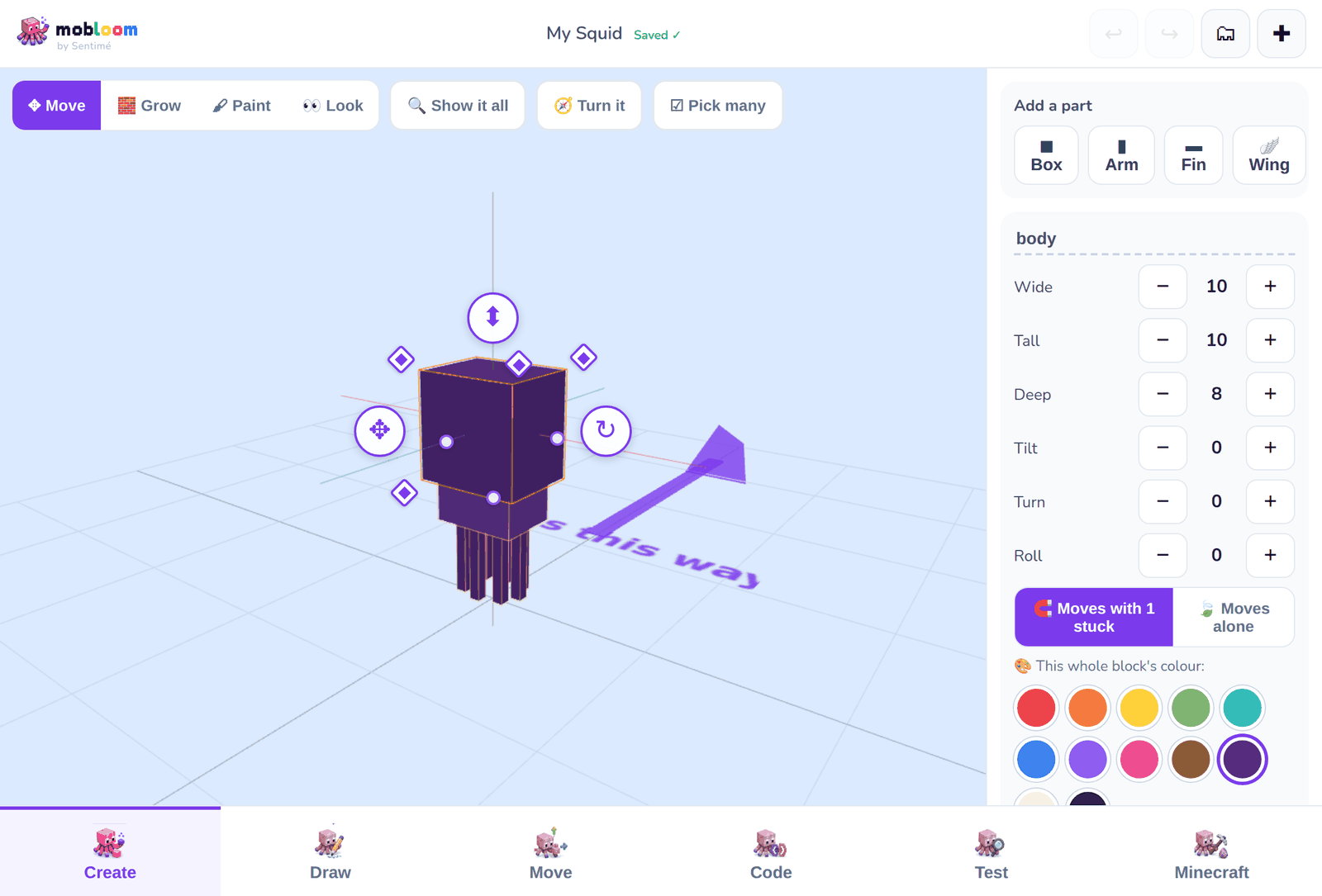
Need the same thing twice? Pick many lets you select several blocks, then Copy copies the whole group at once — arms, fins, legs, spines.
To build outwards fast, use Grow a stuck block on a side in the block’s panel. Each arrow adds a new block against that face, already stuck to the one you started from. Tap, tap, tap and you have a leg.
Want a second version of the whole creature? Open My creatures and tap Copy it. You get a complete copy as its own file, so you can redesign it without losing the first one. Both can go into Minecraft at the same time — the copy gets its own identity, so they never overwrite each other.
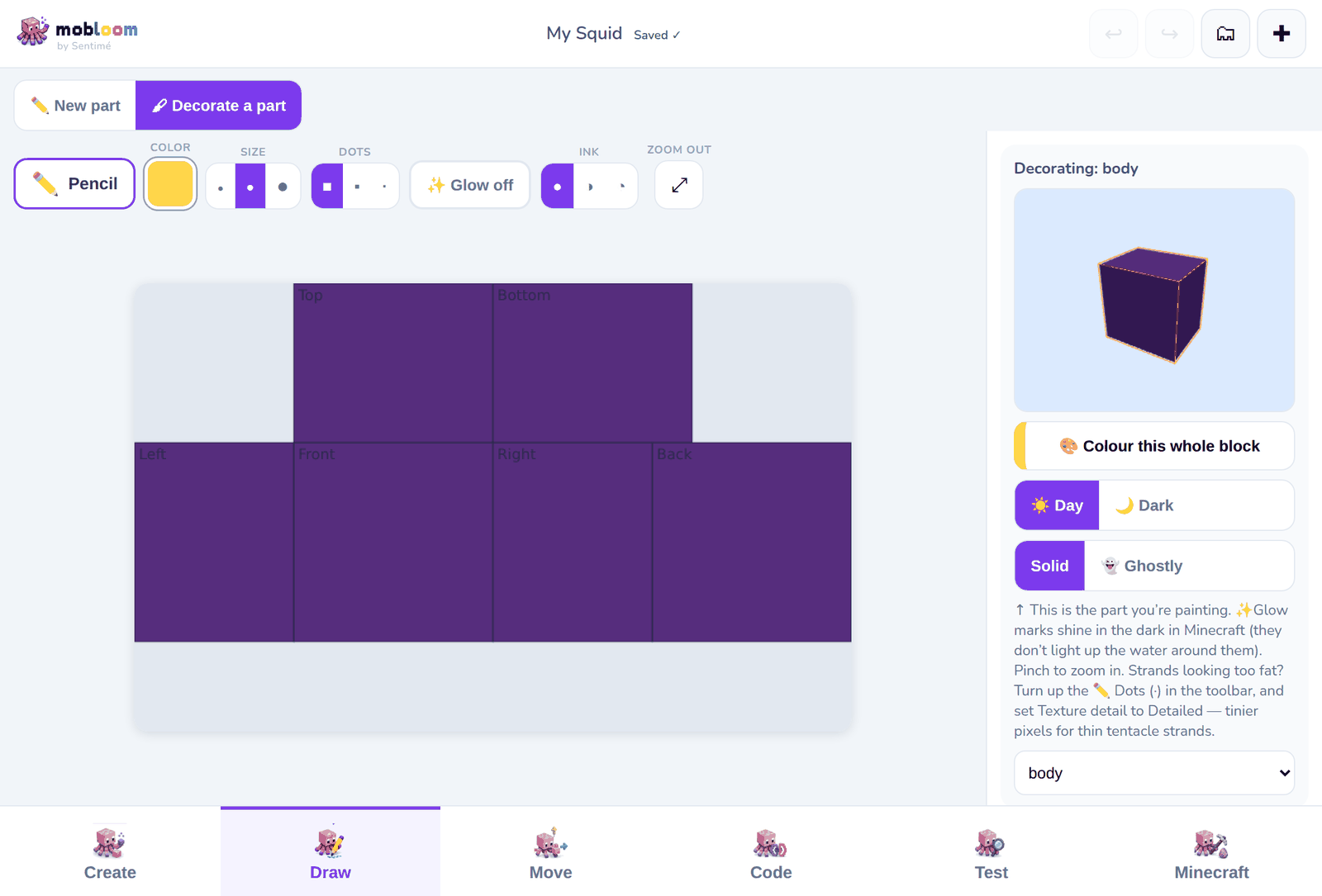
Paint every side in Draw → Decorate a part — patterns, details, glow and ghostly parts.
Moving a block about
Tap a block and three round buttons appear around it. They are the only three things a block can do, and each one does exactly one of them, so you can never move a block by accident while you meant to turn it.
- slide moves it along the ground, forwards, back and sideways.
- lift moves it straight up and down.
- turn spins it.
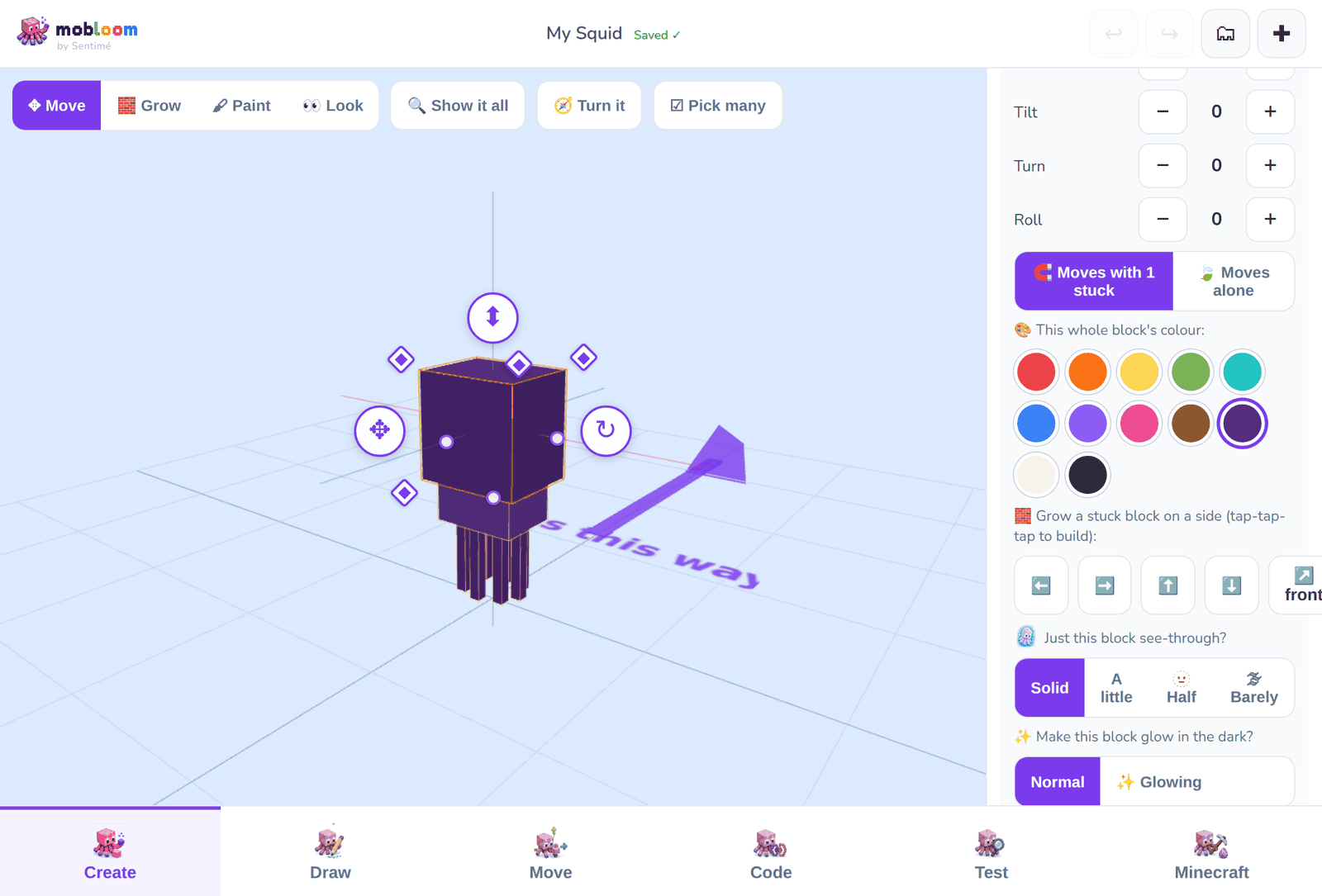
Blocks move half a block at a time, and the block steps as you drag, so where you see it is where it lands. If the block races away when you drag it, tip the view so you are looking down at your creature a little more rather than edge-on from the side.
Sticking blocks together
A block can be stuck to another one. Stuck blocks travel with the block they are stuck to, which is how a hand stays on an arm and a bow stays on a tail.
In the block’s panel, stuck to lets you pick what it rides on. In the Parts list, stuck blocks are shown indented under the block they belong to, and you can drag the ≡ handle and drop a block onto another to stick it there.
Sticking a decoration onto something that already moves is safe: the decoration joins the moving part, and the moving chain is never broken by it. If a motion ever does come loose, Move shows A motion has a loose link with a button that puts it back.
“Moves alone”
When a block has other blocks stuck to it, a choice appears: Moves with … stuck or Moves alone.
The choice sits in the block’s panel, just above its colours.
Moves with is the normal one: move the arm and the hand comes too. Moves alone moves or turns only that block, and everything stuck to it stays exactly where it is — still attached, just not dragged along. Use it when you want to nudge one piece into place without disturbing the rest.
Colours, glow and ghosts
Colour a whole block in one tap
Tap a block in Create and scroll its panel to This whole block’s colour. Tap a colour and all six sides change at once. No painting side by side.
It only changes the colour. Any hole you rubbed out stays a hole, and faint paint stays just as faint. Use Pick many first and you can colour a whole armful of blocks together.
The brush in Draw → Decorate is still there for painting part of a block — stripes, spots, eyes.
Make it glow
In a block’s panel, Glowing lights up that whole block. For glowing spots only — eyes, markings — use the brush in Decorate and paint just those texels.
Glow is self-bright: the creature shines in the dark like a glow squid, but it does not light up the blocks around it. It looks like ordinary paint in daylight, so check it in a cave or at night.
Comes in many colours
In Code, switch on Comes in many colors and pick up to three extra colours. Every creature that hatches comes out in one of them, chosen at random, the way axolotls do.
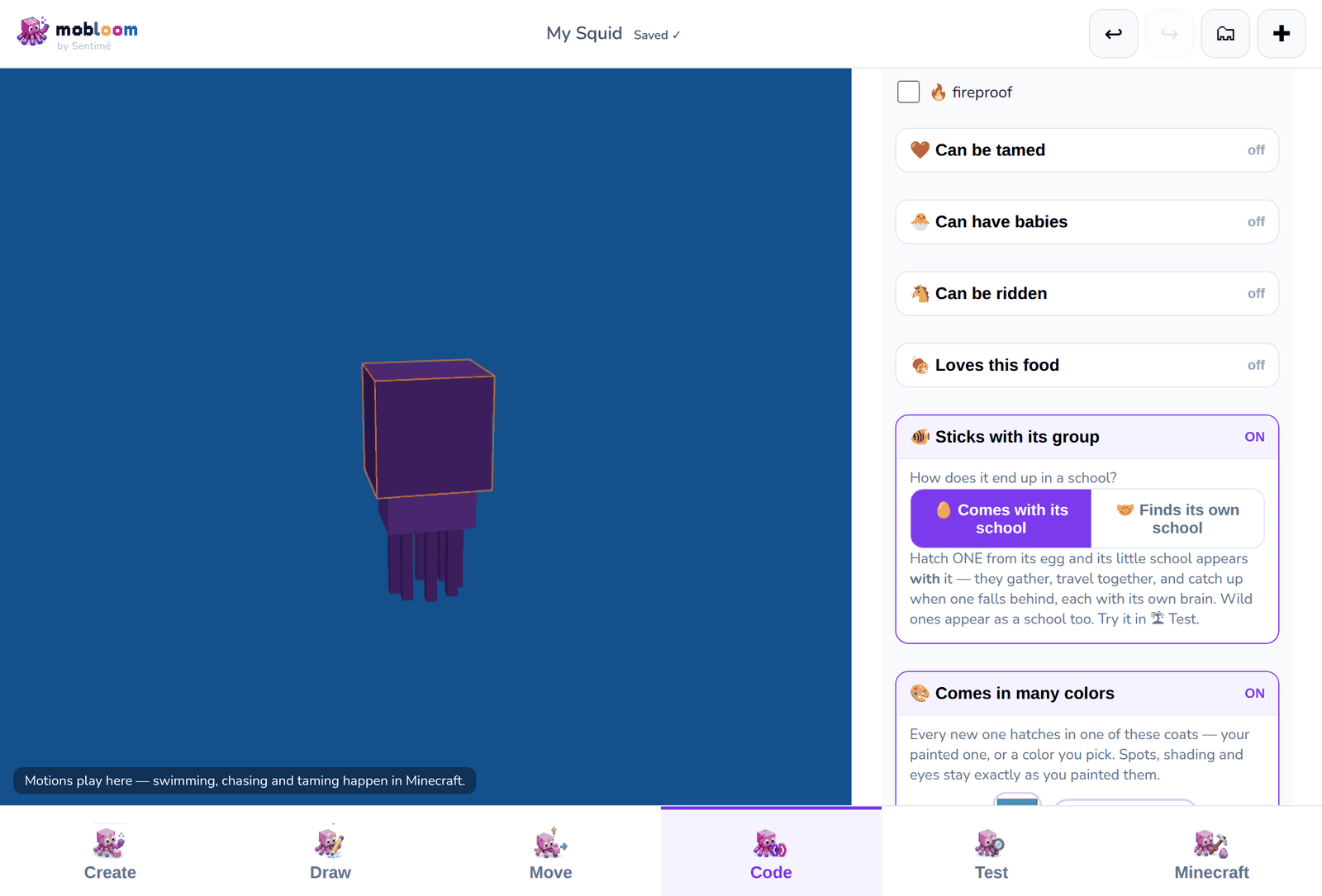
Your painting is kept: only the colour moves. Shading, patterns, and greys, whites and blacks — eyes and teeth — stay exactly as you painted them.
Glowing and many colours work together. Every colour glows, in its own colour, in the same places.
See-through
A single block can be made see-through in its own panel, or the whole creature at once in Draw → Decorate. Ghostly and glowing are different materials, so a creature cannot be both all over — but one block can be ghostly while another glows.
Many of the same thing
Suckers down a tentacle. Scales along a back. Spikes, spines, feathers, teeth. You only ever make one — Mobloom makes the rest, and they all stay linked, so changing the one changes every copy.
1. Make one, stuck to the thing it belongs on
Build a single sucker and stick it to the tentacle. Then tap it — either in the 3D view, or in the Parts list at the bottom of the panel, which is easier for small blocks.
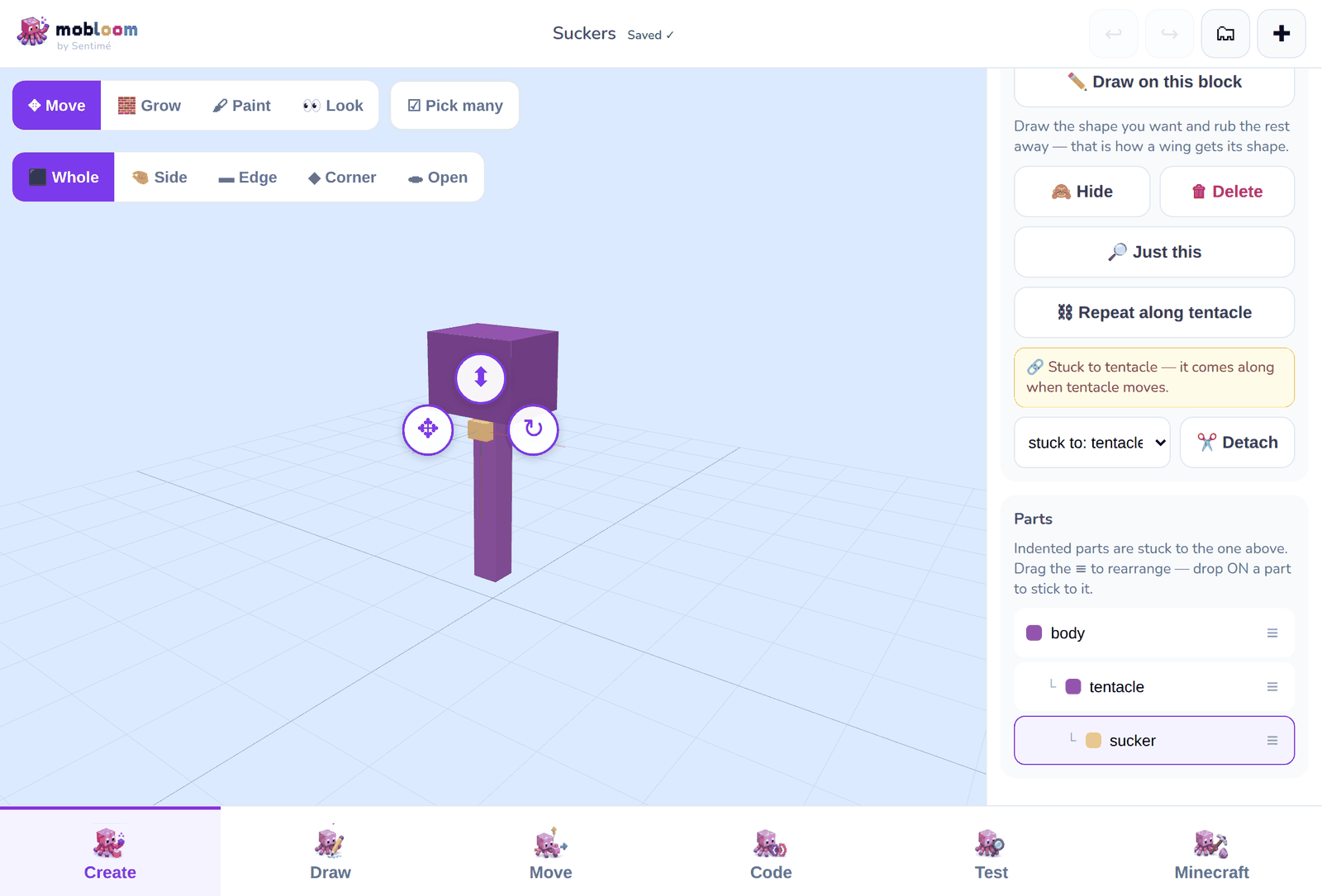
2. Find the Repeat button
Scroll the panel on the right, down past the size numbers. The button names the thing it will repeat along — Repeat along tentacle.
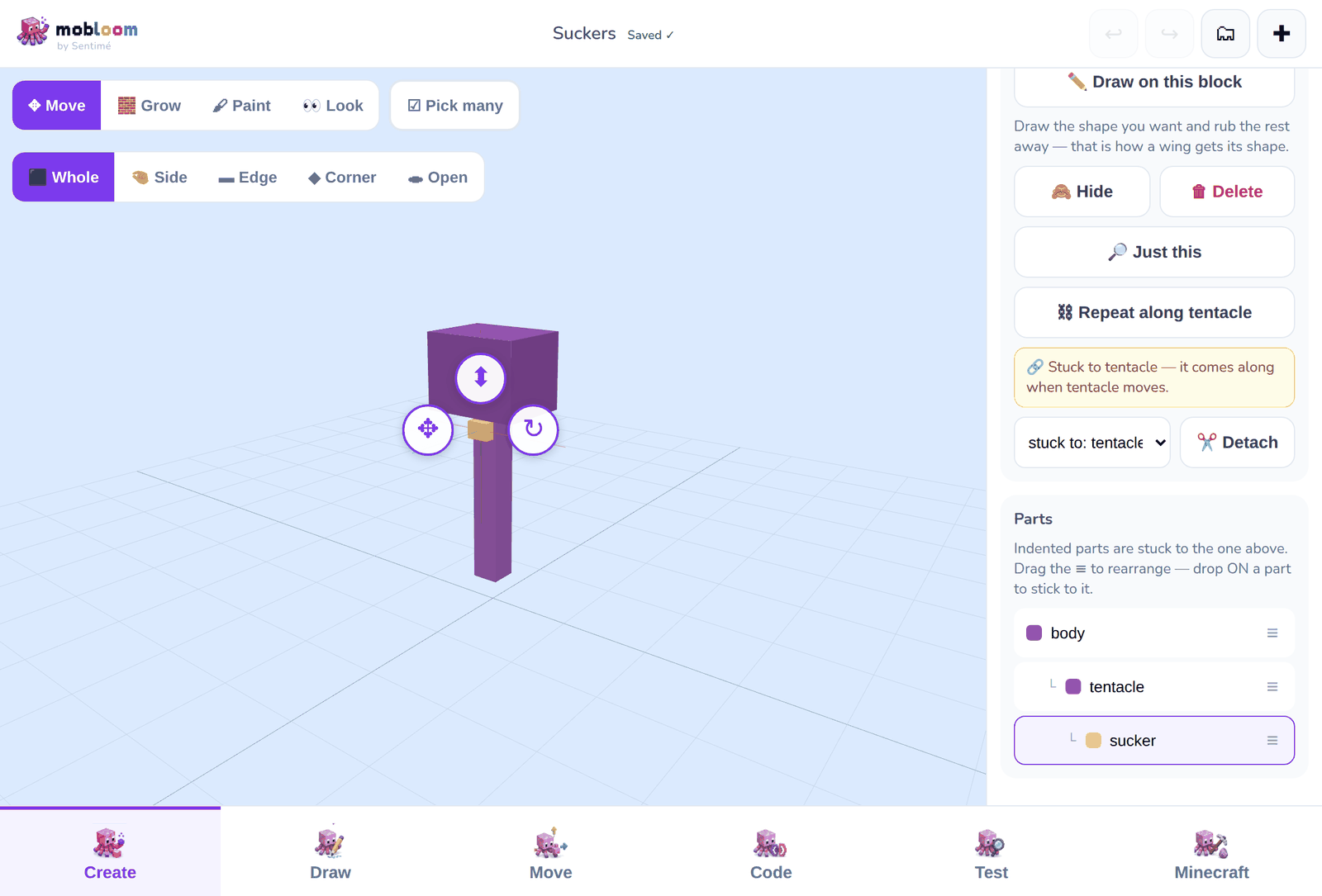
3. Tap it once — and there's a row
One tap fills the whole tentacle with suckers, evenly spread, getting slightly smaller towards the tip.
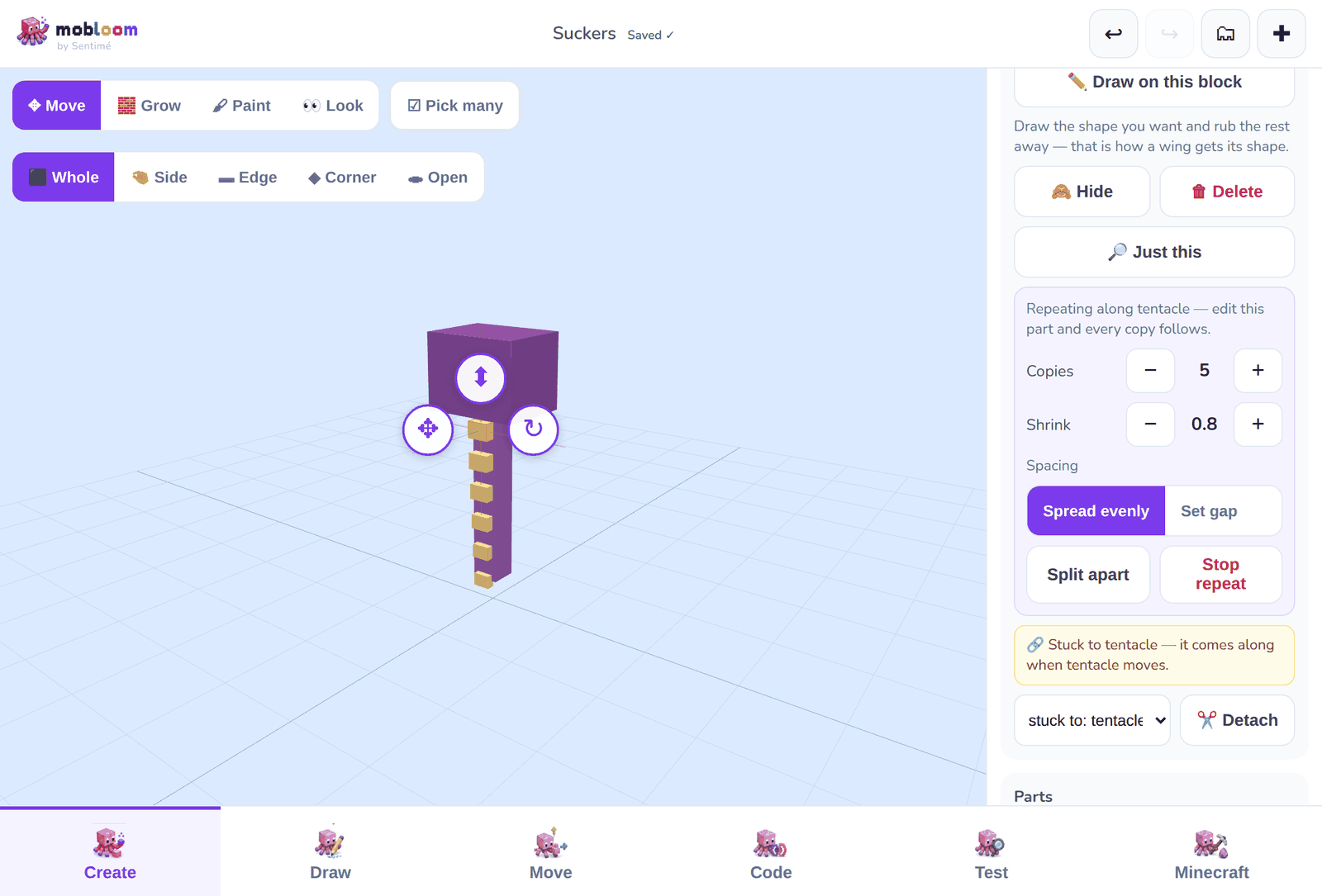
4. Say how many, how small, how far apart
Copies is how many. Shrink makes them get smaller towards the tip — 1 keeps them all the same size. Spread evenly fills the whole length; Set gap lets you choose the exact space between them.
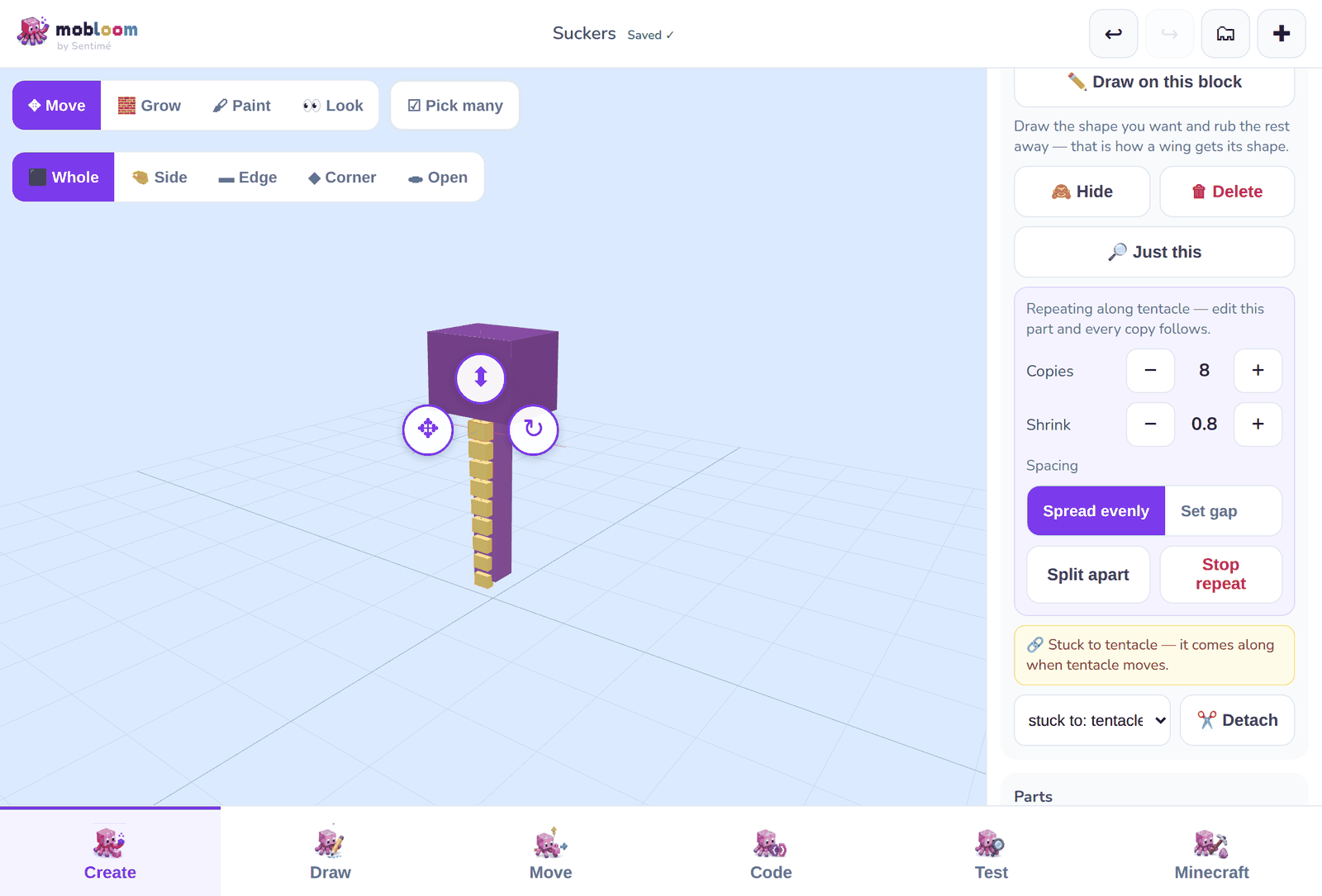
5. Change the one, and they all change
This is the part worth knowing. Tap the original sucker and change it — bigger, deeper, a different colour, painted — and every copy changes with it. You never have to fix them one at a time.
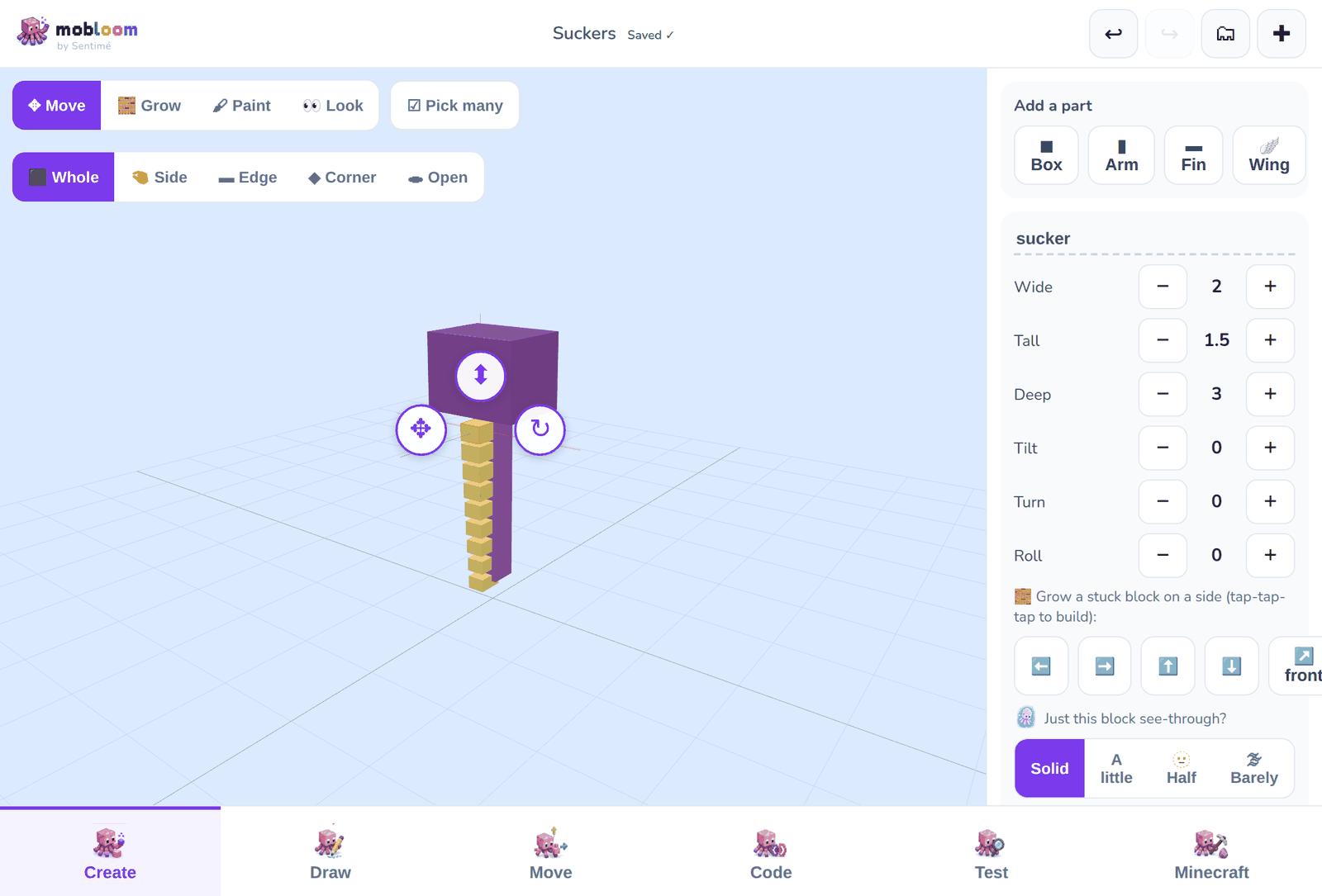
If you want them separate after all
Split apart turns the copies into ordinary blocks you can move one by one. Stop repeat removes the copies and leaves you the one you made. Neither can lose your work — undo brings it back.
Making it move
In Move, any block can become movable. “Make it wiggle” builds a bend chain in one tap.
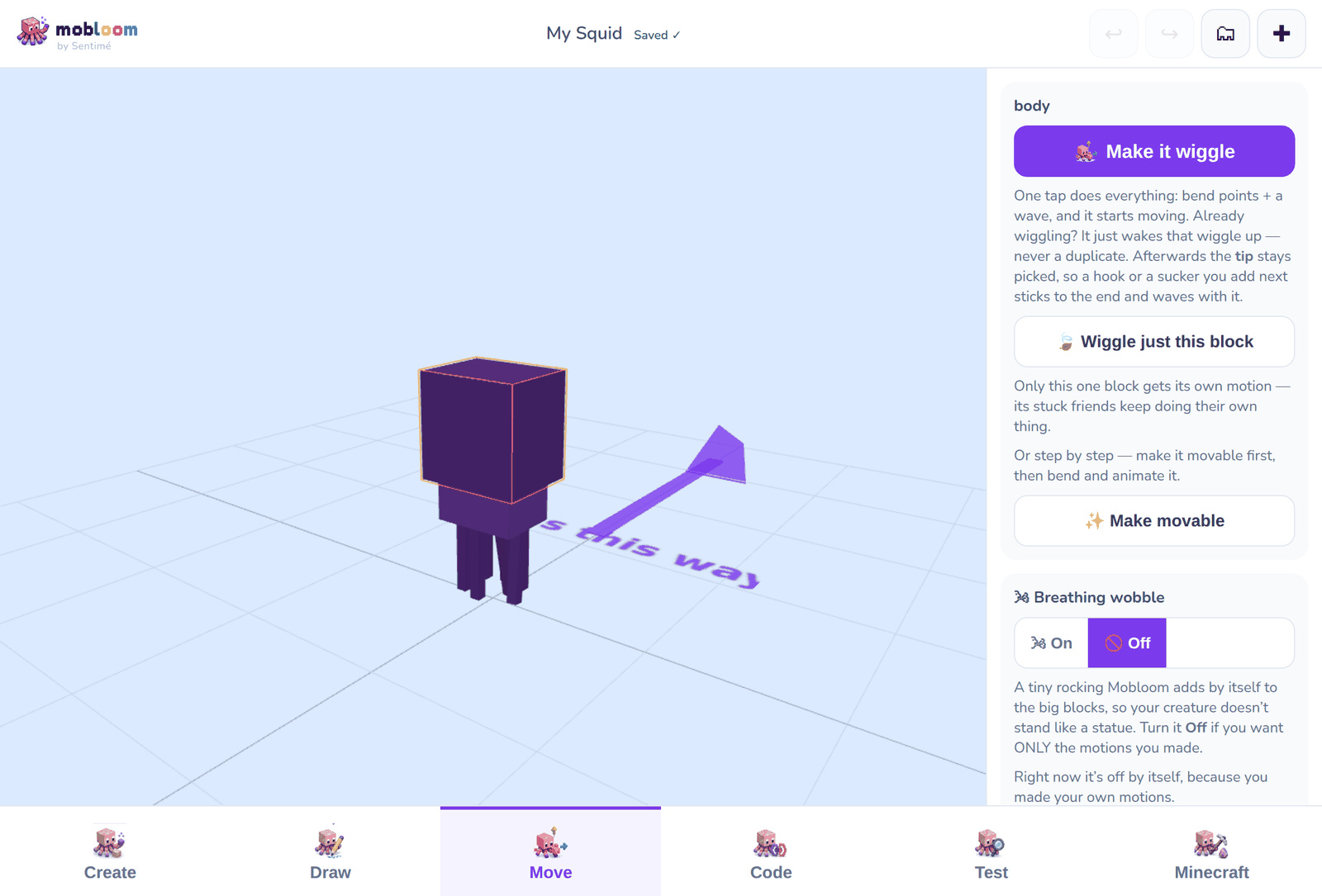
Or record your own motion: drag parts into a pose, snap it, drag to a new pose, snap again, then Done. Each snap is one pose the creature travels between.
While recording, each part gets its own Tilt, Turn and Roll dials, so you can aim a part on all three axes rather than one at a time.
Record live — move it yourself
Snapping poses one at a time makes crisp, deliberate motion. For something smoother, tap Record live — I’ll move it myself, then move the creature with your finger while it records. Mobloom keeps a pose every tenth of a second until you tap Stop.
It is motion capture: whatever you perform is what plays. Move slowly and it moves slowly. Recording stops on its own after a hundred poses so a take can never run away.
Breathing wobble
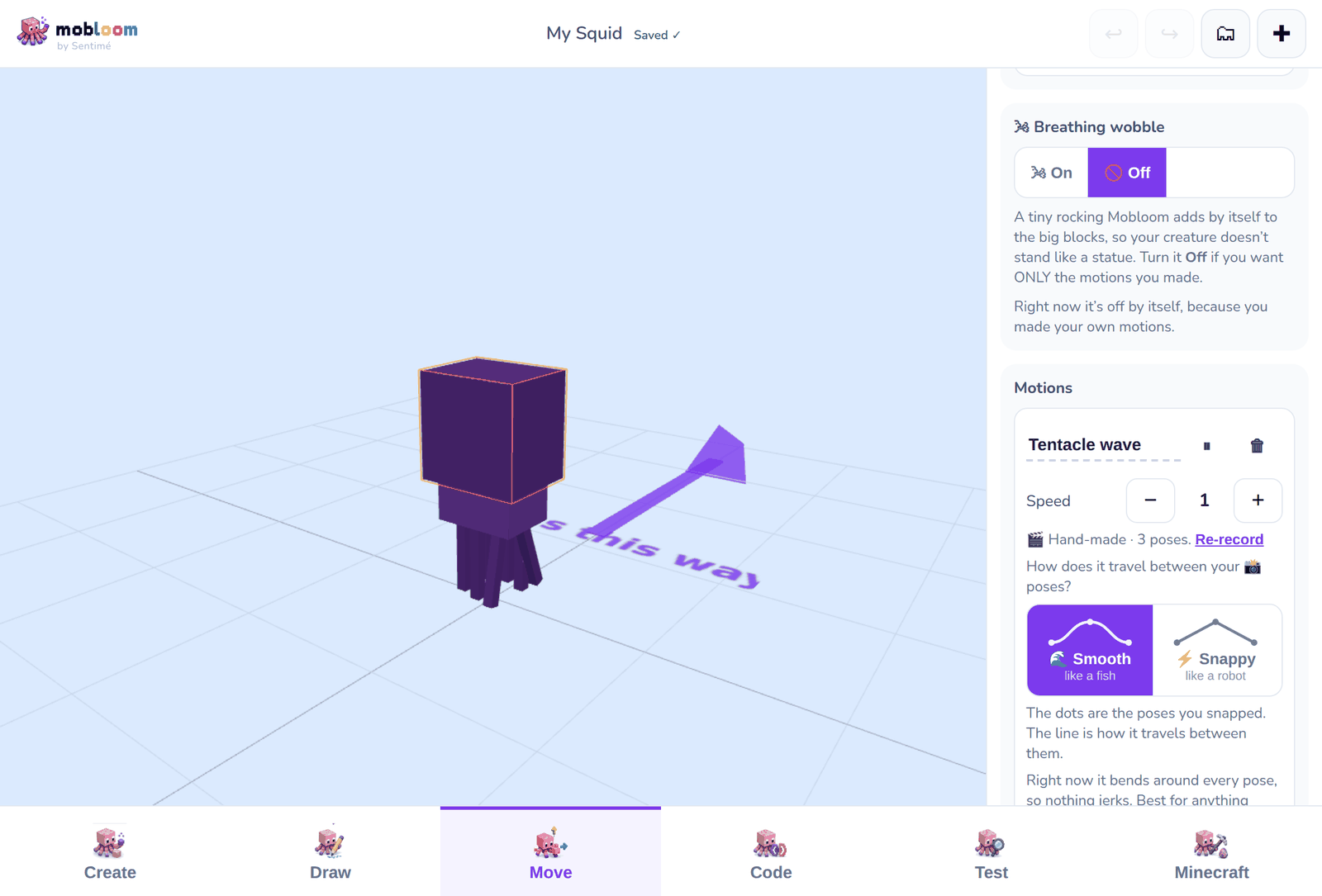
At the top of Move there is a switch called Breathing wobble. It is a tiny rocking Mobloom adds by itself to the big blocks, so a creature with no motions does not stand there like a statue.
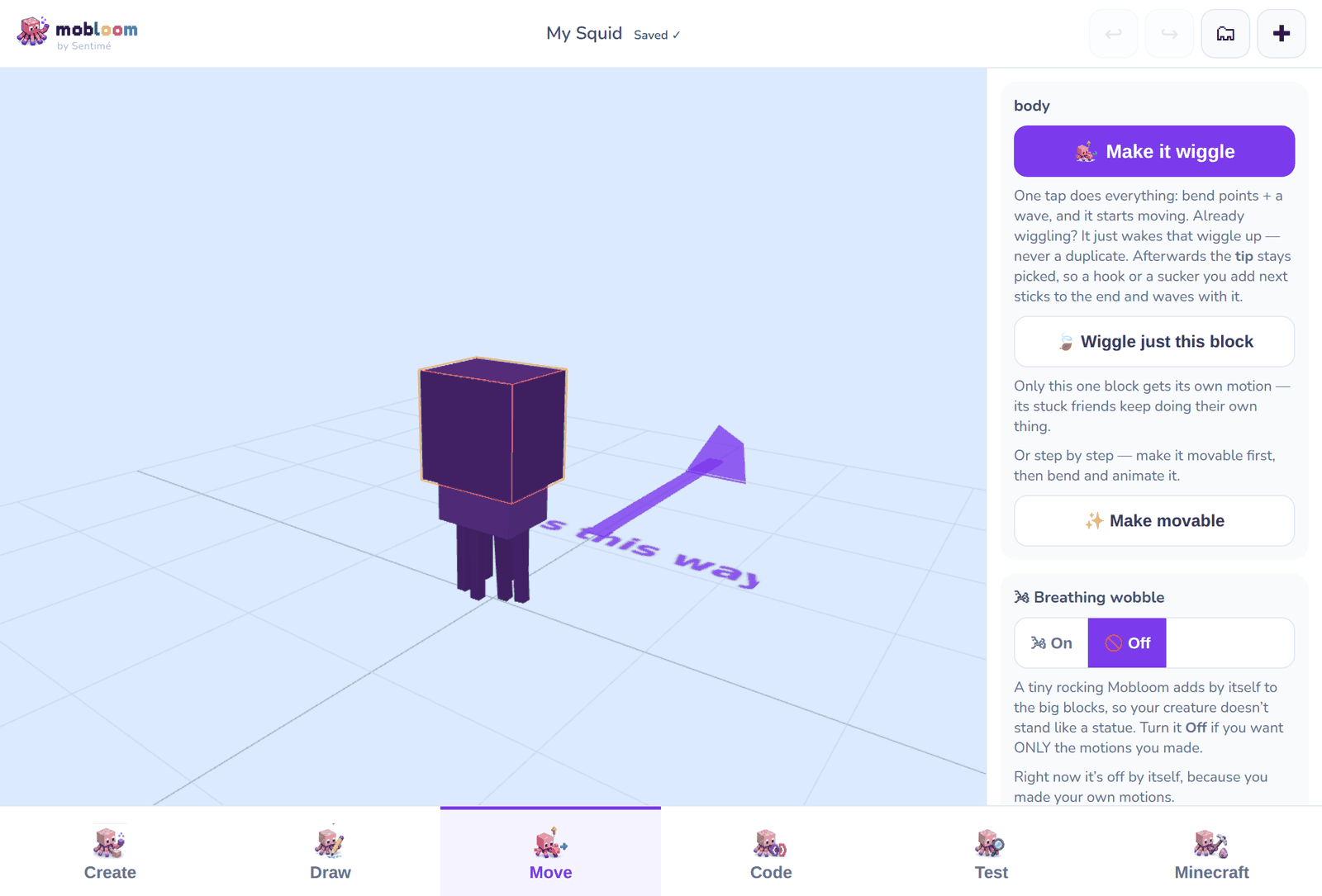
Turn it Off if you want only the motions you made and nothing else. The switch shows what is happening right now, including what Mobloom picked by itself, and it tells you why underneath. Once you tap it, your answer sticks.
Then choose how it travels between them. Smooth curves through your poses — best for anything alive. Snappy turns hard at each one, which is right for robots, and it's the only way to make a creature hold dead still (snap the same pose twice) before a big move.
Giving it behaviour
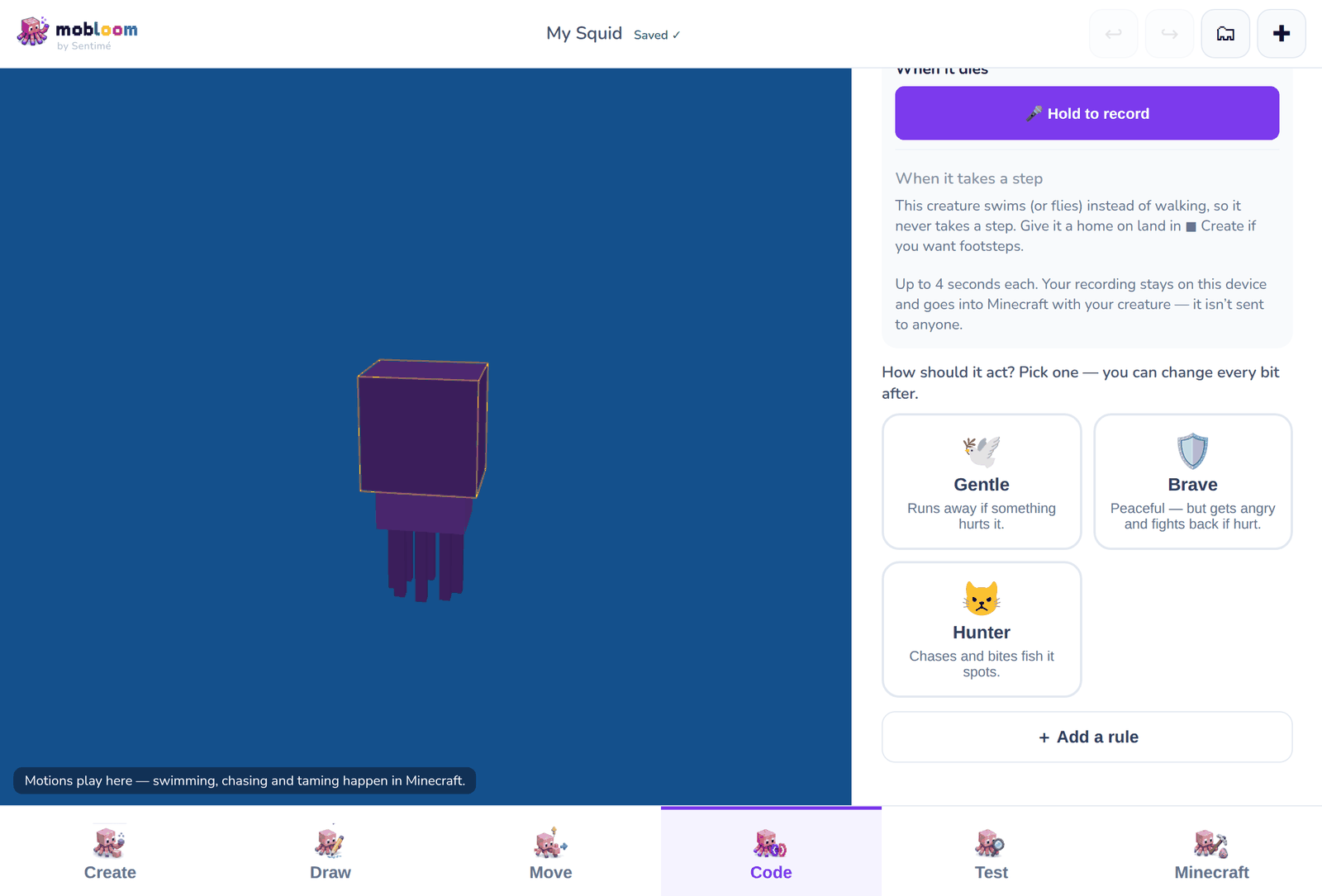
In Code, choose what your creature does using normal words. Rules read WHEN something happens, DO this — when it sees a player, chase it; when it is hurt, run away. Tap + Add a rule to build one.
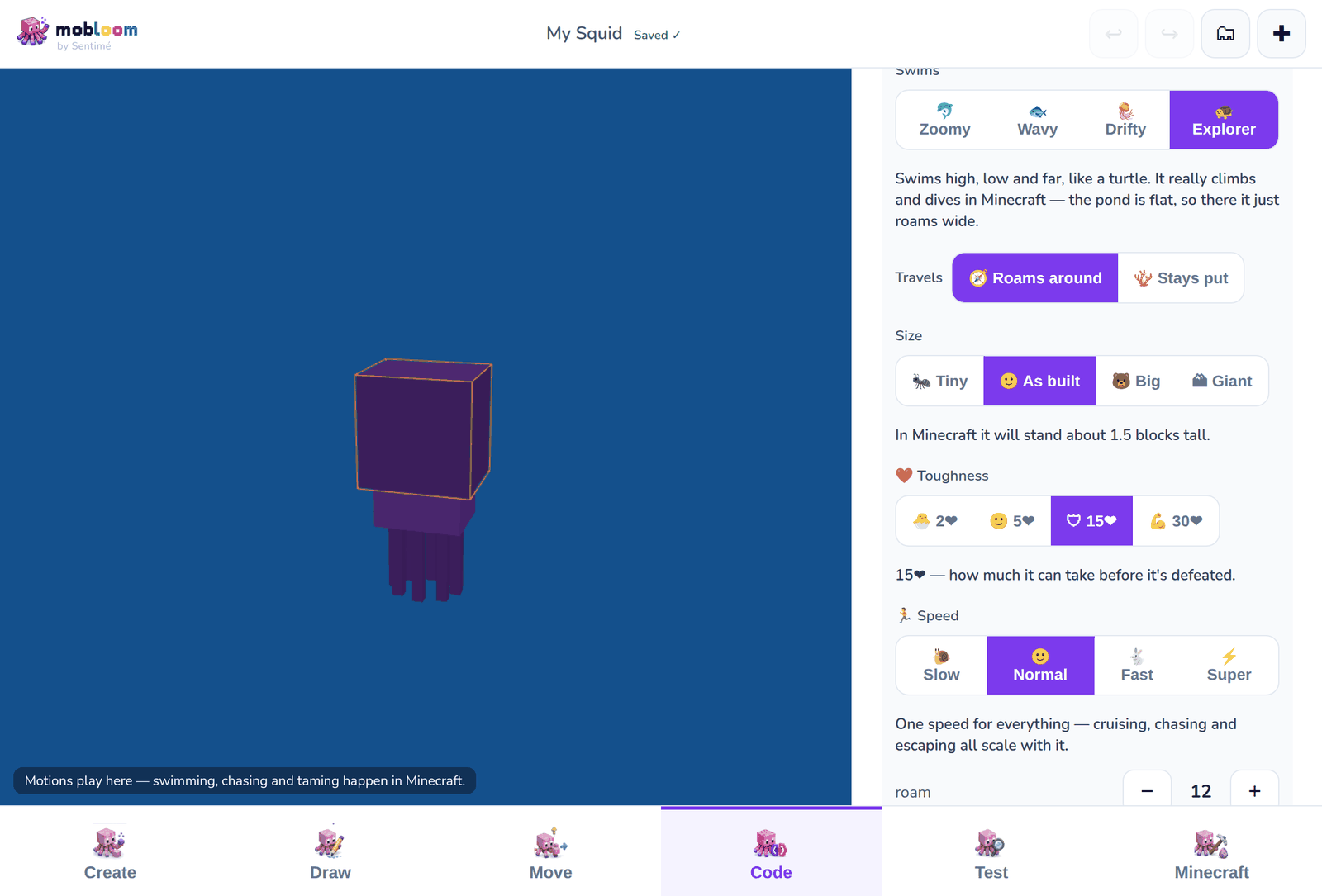
Traits sit above the rules, as switches: how tough it is, how fast it moves, what food it loves, whether it can be tamed, have babies or be ridden, how big it is, whether it stays where it is put, whether it appears in the wild, and what colours it comes in.
Sticks with its group
Switch this on and your creature travels with others of its own kind. It is named for where it lives: a school in water, a herd on land, a flock in the sky.
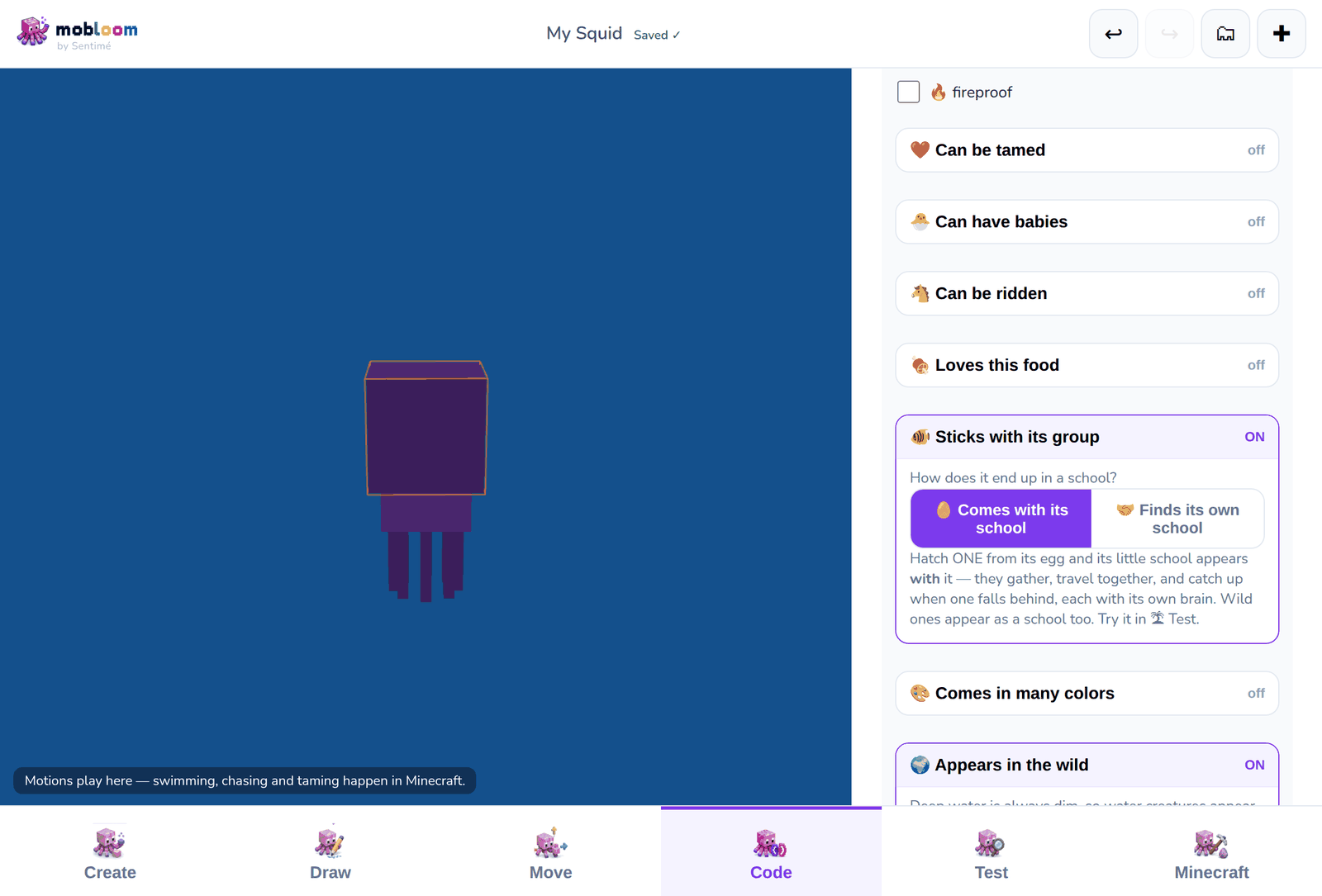
Then choose how it ends up in one. Comes with its … means hatching one brings its group along with it. Finds its own … means it arrives alone and gathers when it meets its own kind. (The buttons say school, herd or flock, whichever yours is.)
The three look different, because Minecraft moves them differently and Mobloom will not pretend otherwise. A school swirls. A herd walks in a line, one behind the other. A flock trails along a few blocks apart. The app says which one you are getting.
How it swims
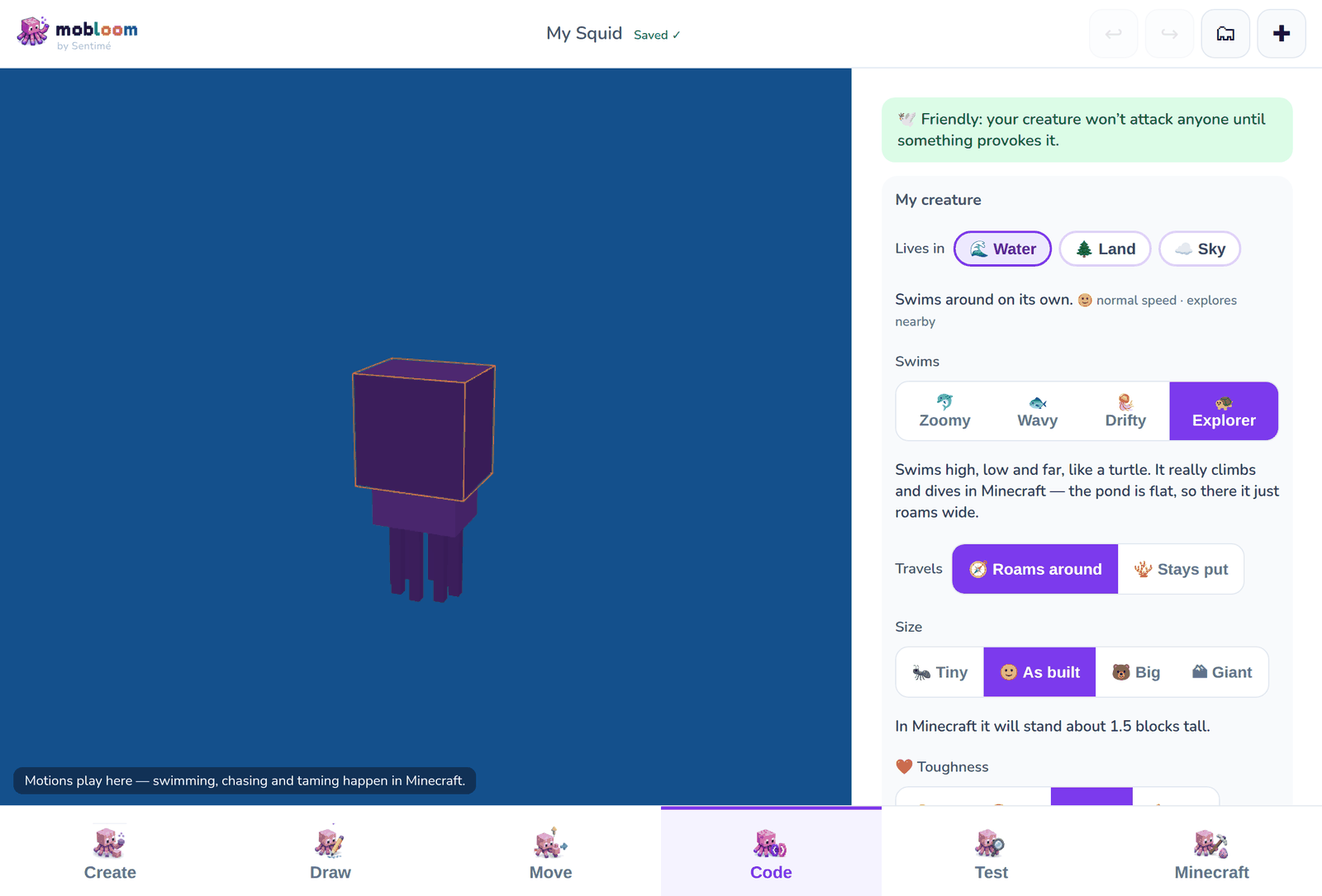
Four ways to move through water. Zoomy cruises far and fast, like a dolphin. Wavy weaves, darts and rests, like a fish. Drifty floats, bobs and pauses, like a jellyfish. Explorer swims high, low and far, like a turtle — the only one that really climbs and dives.
What does it sound like?
Also in Code: give your creature its own noises, and it makes them in Minecraft — a call now and then, a noise when it is hurt, a noise when it dies.
Water, land, sky — or any mix
At the top of Code, three chips say which elements your creature belongs to: Water, Land, Sky. Tap any combination. Land and sky together gives you something that flies between perches and walks about, like a parrot. Water and sky gives you a flying fish. All three gives you something at home anywhere.
What you pick changes how it actually moves in Minecraft, not just where it appears.
Where in the world
Turn on Appears in the wild and pick Where does it live? — rivers, warm oceans, swamps, jungles, deserts and more. Your creature then turns up on its own while you explore, in the places you chose.
Minecraft has no real-world places in it, so a river dolphin lives in Minecraft's rivers rather than the Amazon. Mobloom says so plainly rather than pretending otherwise.
Testing your creature
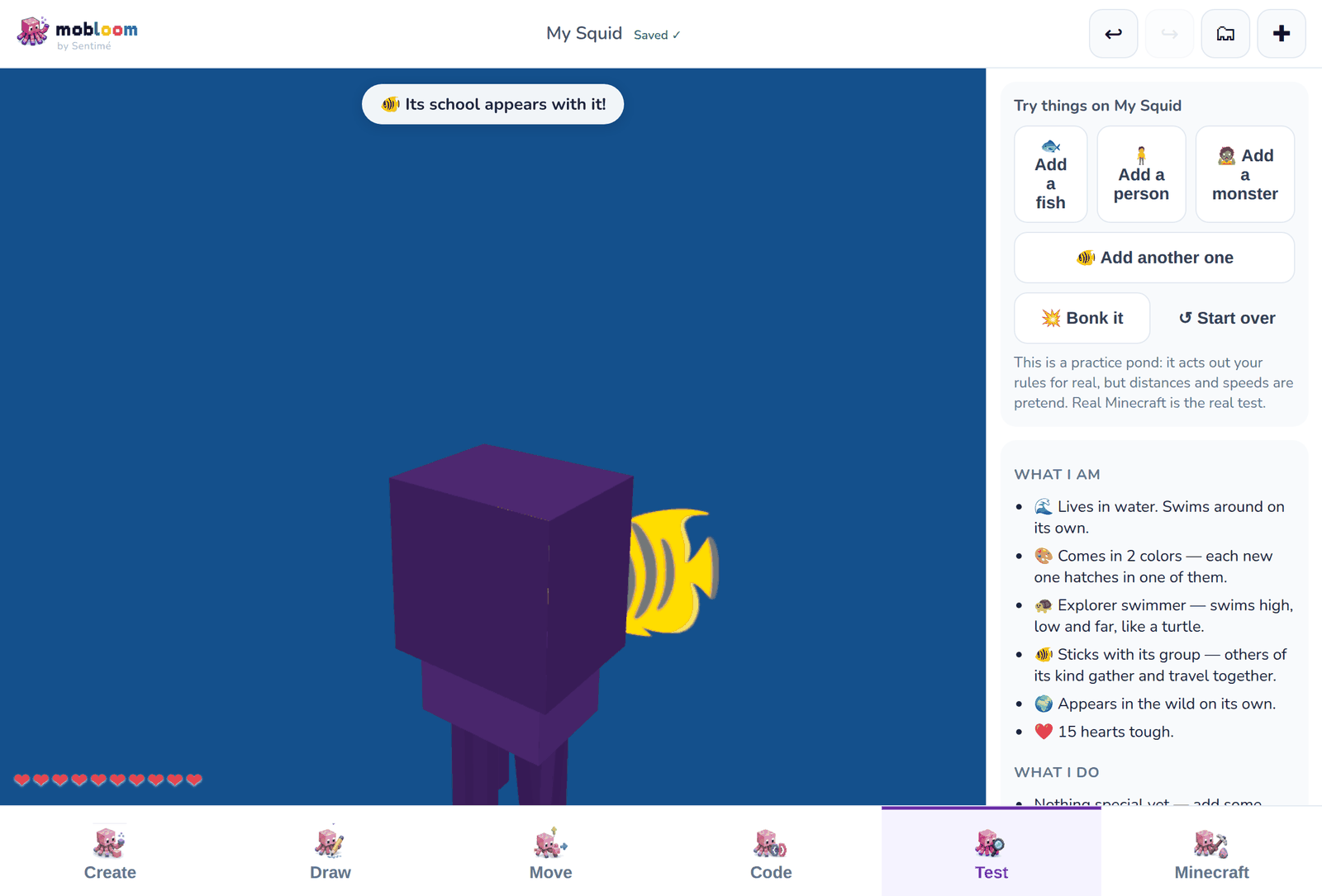
The Test practice pond acts out your creature’s rules before export. Add a fish, a person or a monster and watch what happens. What the pond shows is what Minecraft will do.
Putting it in Minecraft
How do I put my creature in Minecraft?
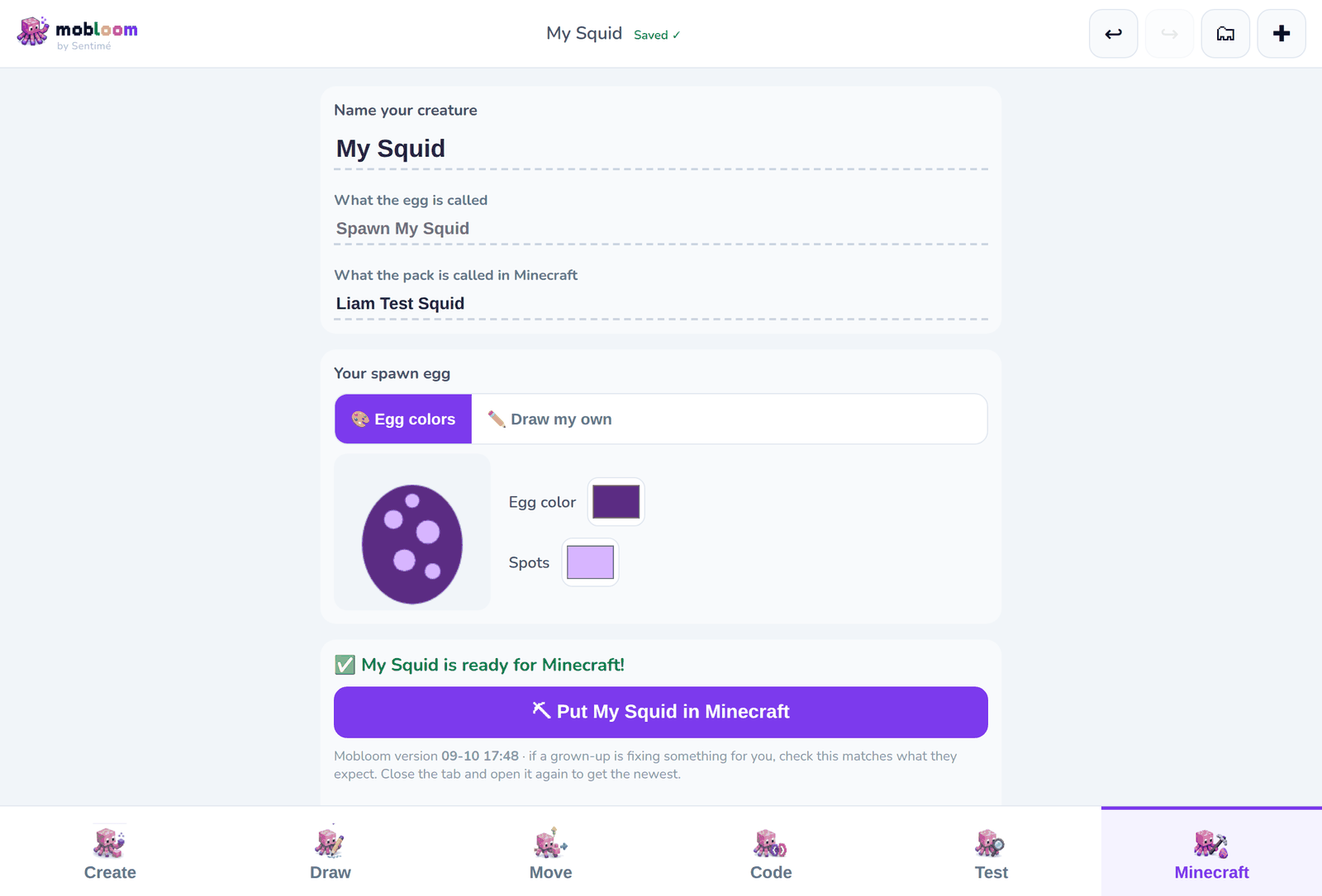
- Go to the Minecraft tab and tap the big button. Mobloom makes the Minecraft file. This one step needs the internet and your family’s 30 days free to export or a subscription (a grown-up starts the trial with a card in Plan & billing); building, painting, testing and saving are free and never do.
- Open the downloaded file on the same device. Minecraft imports it.
- Find your creature’s spawn egg in the creative inventory and place it. There it is.
Works with Minecraft Bedrock Edition. We have tested it on iPad. Java Edition is a different game and is not supported.
Step by step: add a custom mob to Minecraft Bedrock on iPad · make your own Minecraft mob without code · is Mobloom safe for kids? · FAQ
Your creature only appears in worlds where you switch its pack on. In a new world it is usually on already; in an existing world, open the world’s settings and turn the pack on under Behaviour Packs and Resource Packs.
What if nothing happens when I open the file?
- Open Minecraft first. If Minecraft has never been opened on that device, nothing is registered to handle the file yet. Launch the game once, then open the file again.
- On an iPad, if Safari saved it to Files instead of opening it, go to Files → Downloads and tap the file there.
- Check the version number. Every export is named with a version, like
_v2.00007. Minecraft shows the same number in its pack list. If they do not match, the game is still using an older import. The newest file is the one with the highest number.
Why can’t I find my creature in the game?
- Its spawn egg is in the creative inventory. Search the inventory for the name you gave it.
- A creature that appears in the wild only turns up in the places you chose, as you explore. It will not be standing next to you when the world loads.
- Glow never shows in daylight. Take it into a cave or wait for night.
Keeping a copy
In the Minecraft tab, Save … as a Mobloom file gives you a .mobloom file. That is the creature itself, not the game version — keep it, send it to someone, or open it on another device. It is also the best thing to send us when something is wrong.
Putting a creature away
In My creatures, the Put away button next to a creature puts it away. It is not a delete: the creature leaves the cloud shelf — which frees a spot for the whole family — and waits in your keeping room on that device. Open My creatures → Your keeping room to look inside, and Bring back to put one back on the shelf.
The keeping room lives on that one device. It is the browser's own storage, so clearing the browser's data, or wiping the device, takes everything in it — and creatures there are no longer in the cloud to come back from. If a creature matters, save it as a file first: Save as a file in the keeping room, or Save … as a Mobloom file in the Minecraft tab. A .mobloom file (or the exported .mcaddon) is the only copy nothing on the device can take away.
Inside the keeping room, Gone for good is the one button in Mobloom that really deletes a creature. It asks first, and nobody can undo it.
Finding a lost creature
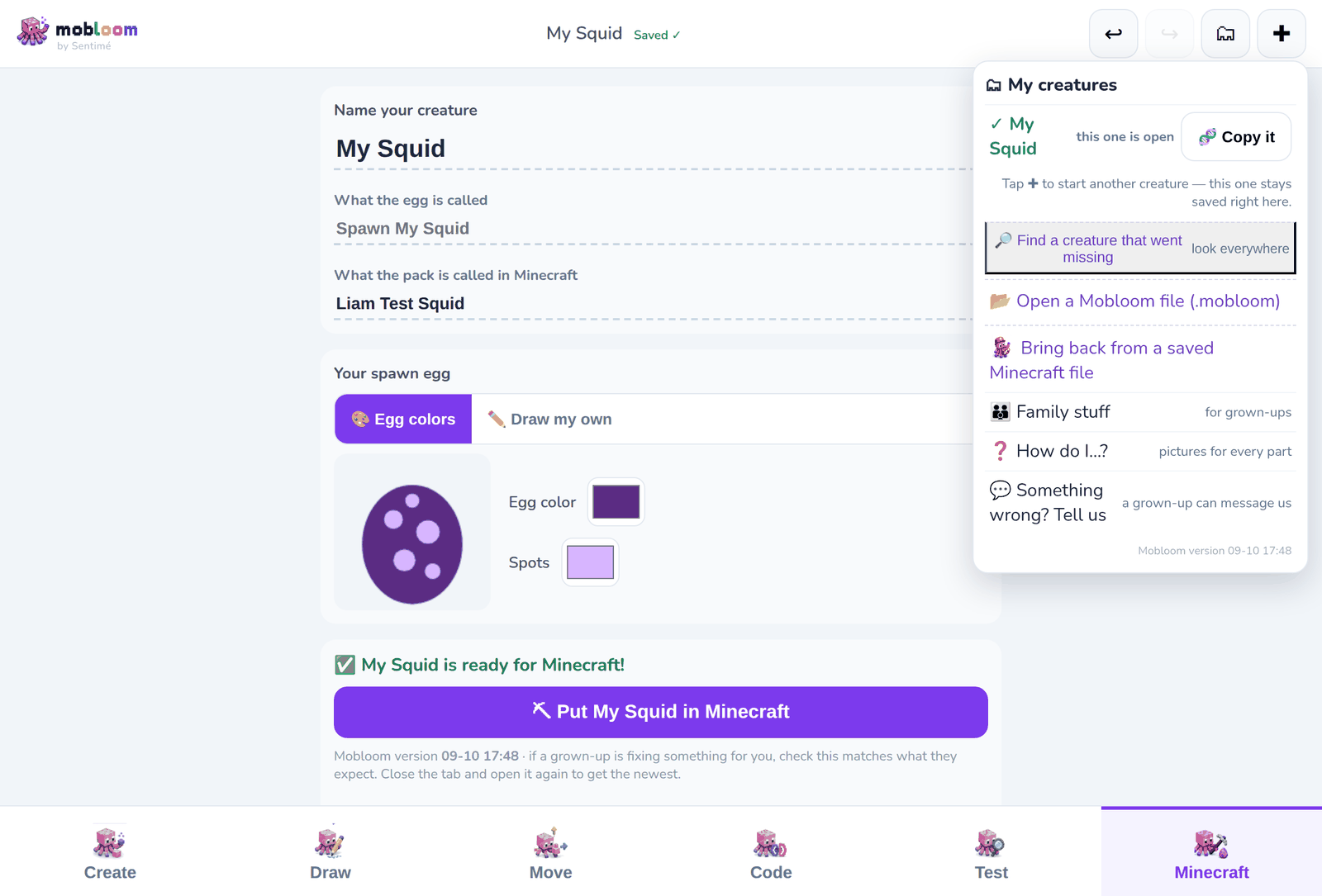
Creature Rescue rebuilds a Mobloom project from its exported Minecraft file: open My creatures → “Bring back from a saved Minecraft file” and pick the file. Blocks, skin, glow, motions and behaviour come back ready to edit — even on a brand-new device.
Accounts & cloud saving
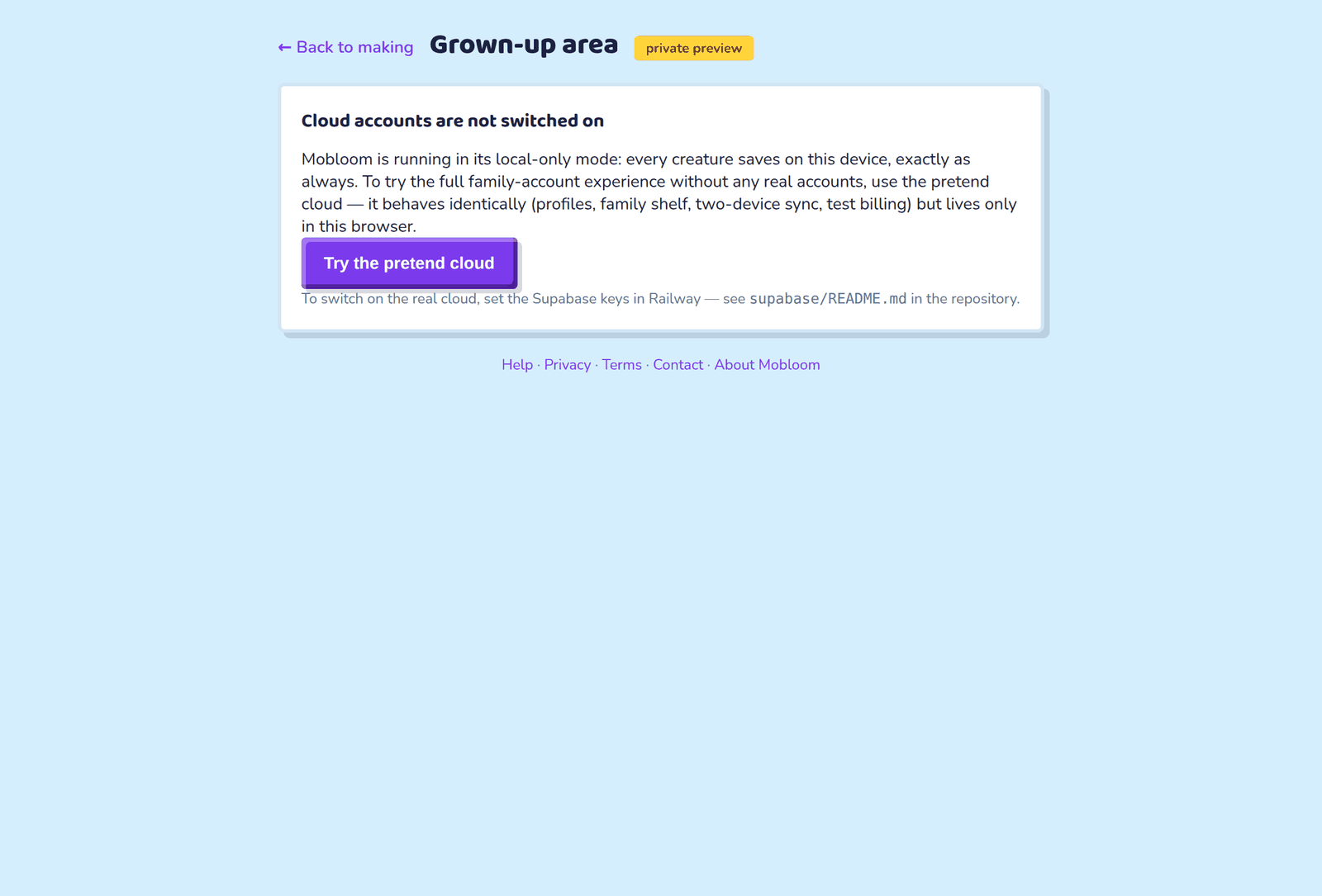
Everything saves automatically on your device, always. A grown-up can create a free family account at the grown-up area, add makers, and put this device’s creatures on the family cloud shelf. Making, painting, saving and editing are free and never need a card; Minecraft exports need the 30-day free trial or a subscription, which a grown-up starts in Plan & billing.
The words in the top bar tell you the save status: Saving…, Saved, or Saved here — cloud waiting when the internet is away. If two versions of a creature ever meet, nothing is deleted — both are kept in My creatures.
My creatures
Tap the folder in the top bar, then See all my creatures. Every creature you made is there as a picture with its name and when you last worked on it. Find one by name, sort by newest, A to Z or biggest, and tap it to open it, write a few words about it, make a copy (the original stays exactly as it was), save it as a file, or put it away. A put-away creature is not gone: Bring it back restores it, and a grown-up can also find it in the family bin. Each maker sees only their own creatures; a grown-up sees every maker’s on the family shelf in the grown-up area. Every creature is private unless a grown-up offers it to the Mobloom Universe — the card says Private, Awaiting Parent Approval, Awaiting Admin Review, Published or Rejected.
Still stuck?
Tell us what you expected to happen and what happened instead.
That usually gives us the best place to start.
Grown-ups only — other testers can see your name there. Other ways to reach us.